// onlyn00bs
a friend-finder badge for def con 34 · firmware v1.10
virtualshack.io / badge
TL;DR
$50 badge/lanyard that tracks time you spend with other n00bs and feet enthusiasts.
Setup needs Chrome or Edge on a laptop or Android phone. It uses Web Bluetooth, which does not exist on iOS — not in Safari, and not in Chrome for iPhone either. Blame Tim Apple.
Also: this page caches itself, so you don't need an internet connection to use it next time.
What's new — newest first
- 2026-08-05 · New Deep sleep feature — put the badge into low power mode without unplugging the
battery.
Badge Settings → Power → Deep sleep, then press the button to wake it. Reboot has moved into the same Power menu. Badges flashed before 2026-08-05 need a firmware update to get it. - 2026-08-01 · The setup app is live on this site — hit set up my badge and go. Once you've loaded the PWA, it will remain available for offline browser use.
- 2026-07-25 · New matrix boot splash — falling "onlyn00bs" glyph rain. Pick it in Badge Settings → Display → Splash.
// the concept
OnlyN00bs is not just an amateur badge project for DefCon 34, it's an amateur badge project for DefCon 34 brought to life through relentless tokenmaxxing. Could anything be more appropriate for 2026?
Each badge scans for fellow n00bs and feet enthusiasts, displaying real-time proximity information and beaming your own handle - and ASCII avatar - to those in range. Avatars are user-customizable — faces, name, the lot. Earn made up points. Earn even more made up points by being in range of your friends.
Designed to be at least mildly secure, every beacon your badge sends and receives over ESP-NOW is HMAC-signed.
// the hardware (tl;dr)
- ESP32-E (tariffs oof)
- 2.42" SSD1309 OLED (blue, yellow, and green available in limited quantities)
- 2000 mAh LiPo battery (12-14 hours per charge observed in testing)
- USB-C charging (🫡 🇪🇺 )
- A single button
// the firmware (tl;dr)
Currently clean on OpSec 👊 🇺🇸🔥
- Points are awarded for time spent near fellow badge-holders, with group bonus multipliers
// the case
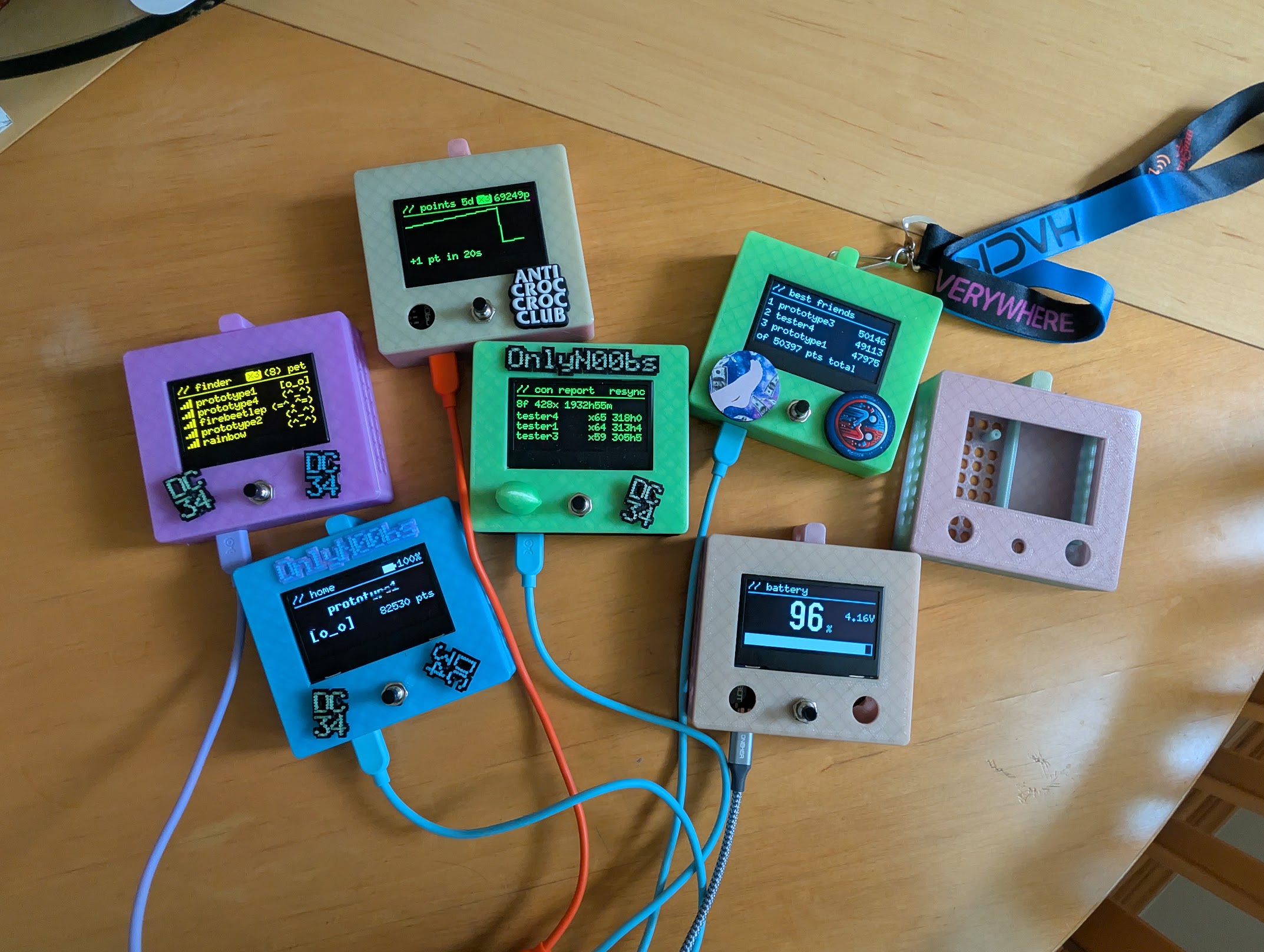
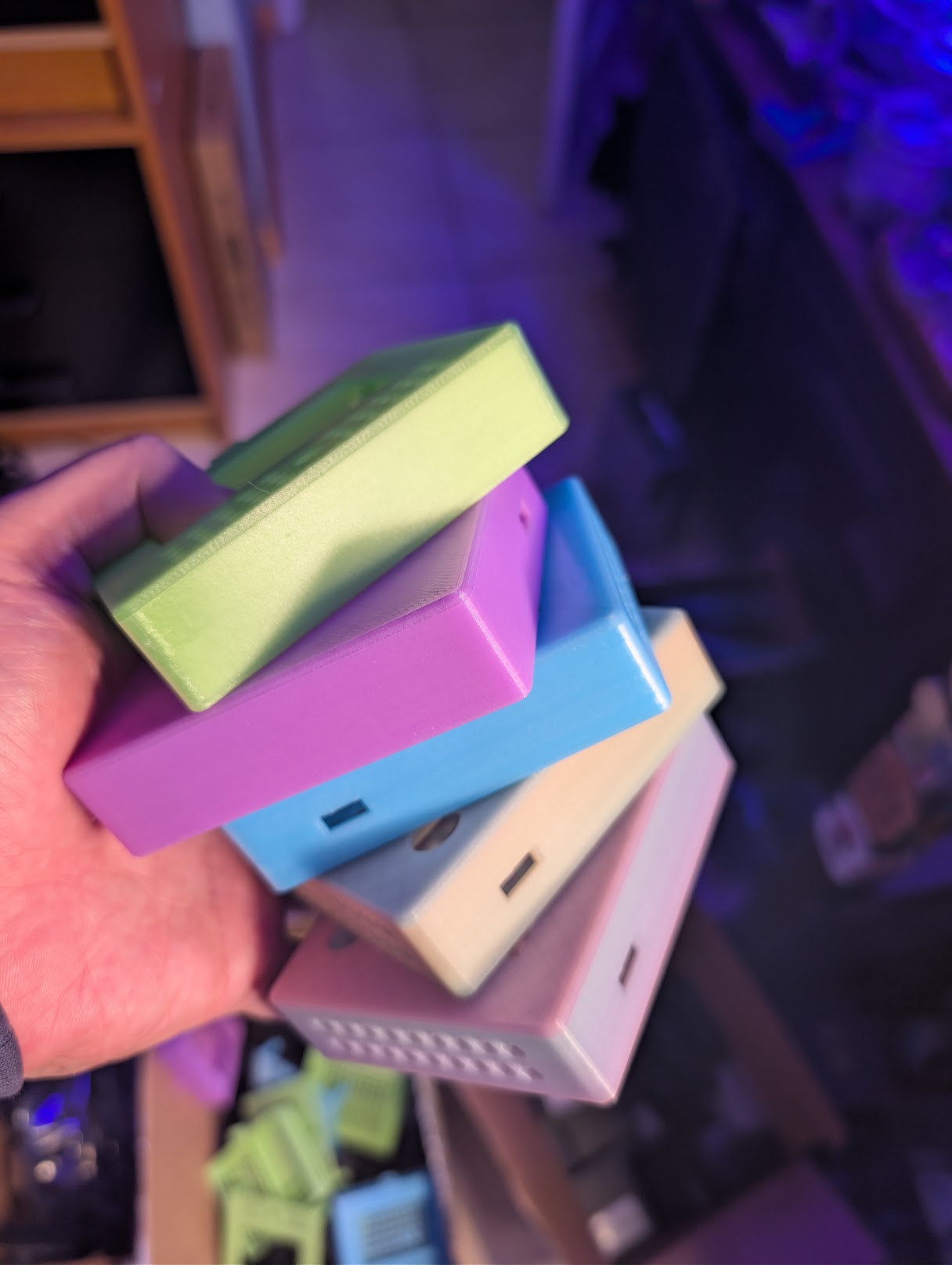
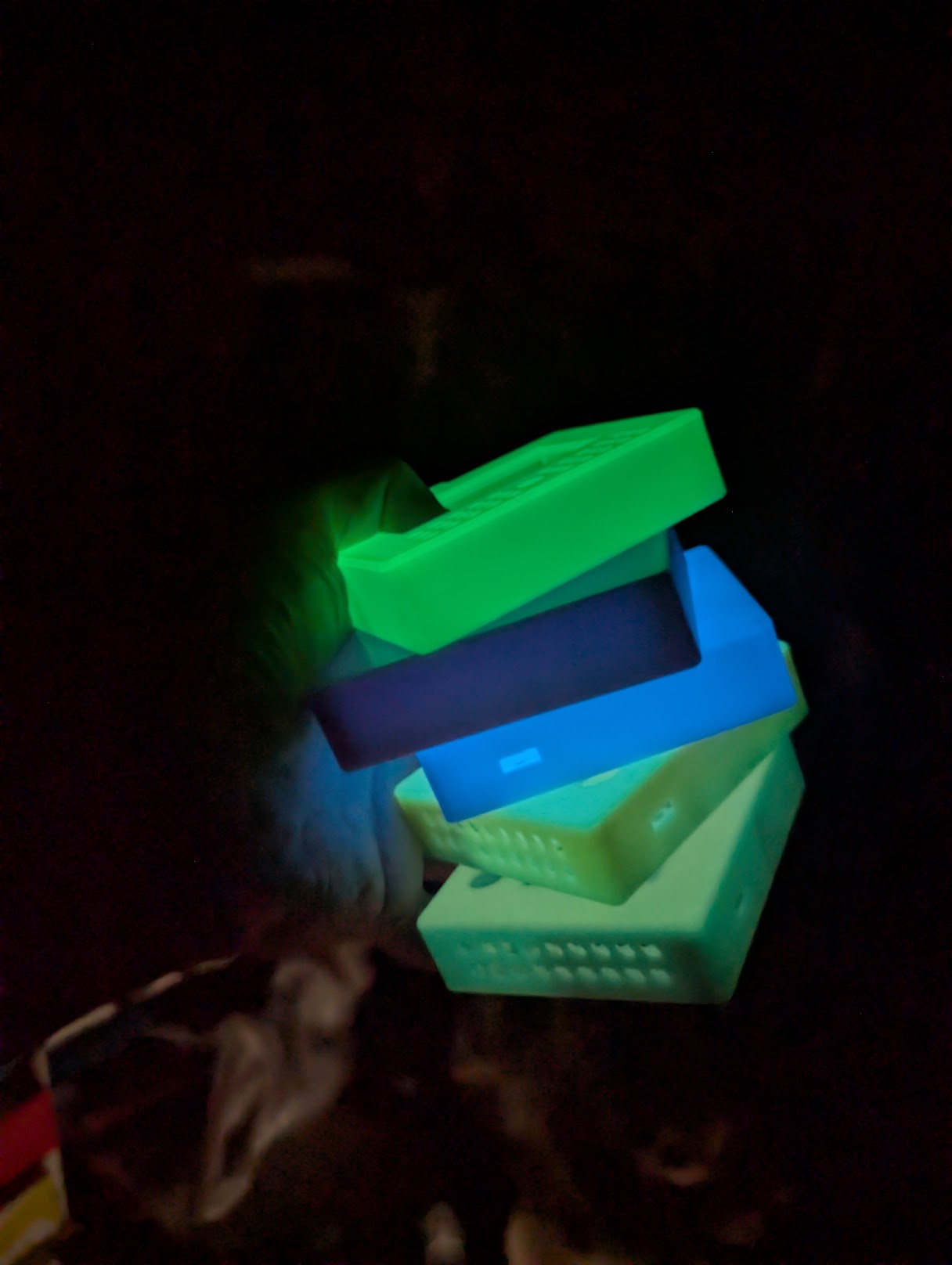
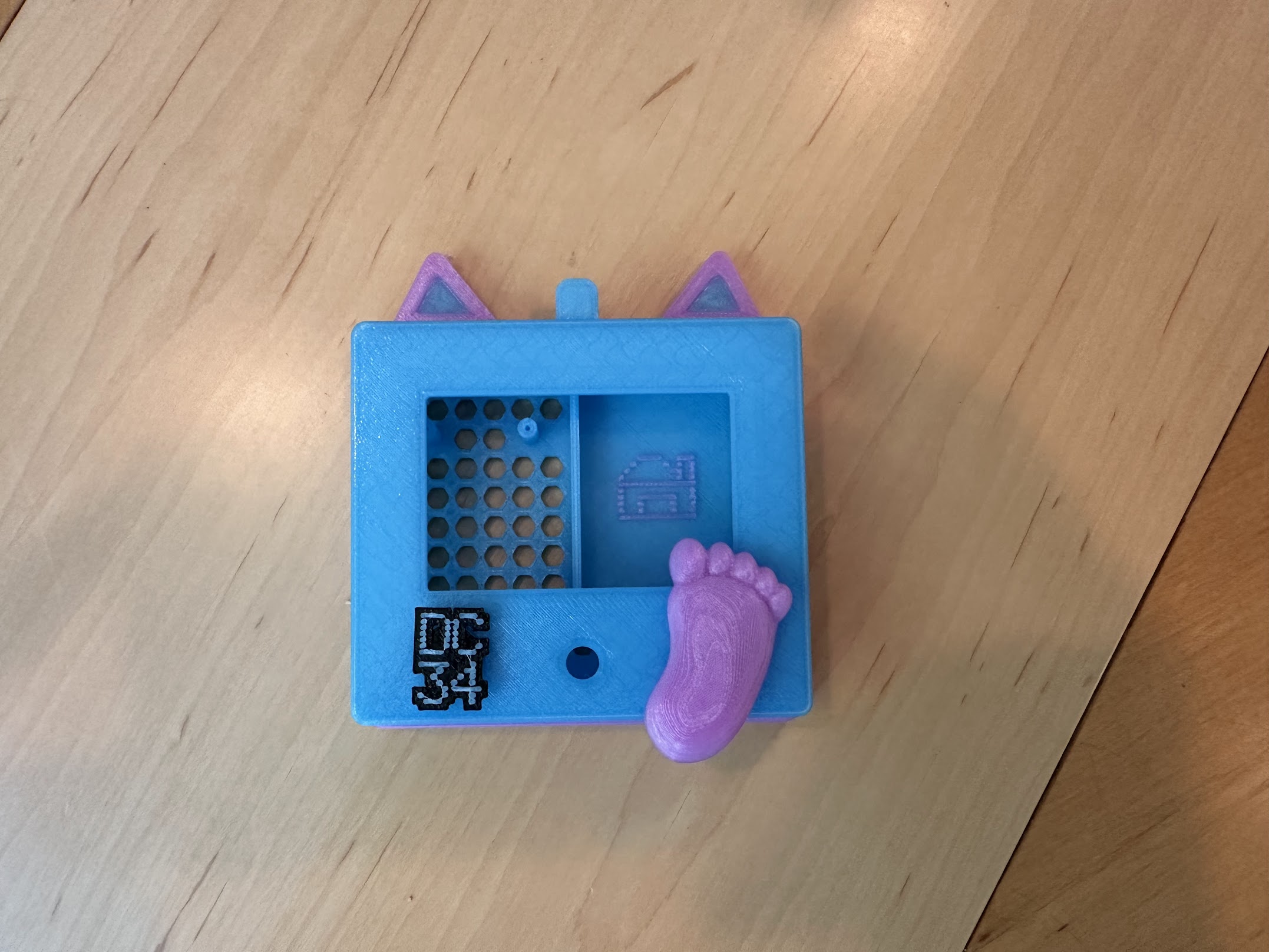
Each badge comes in a 3D printed glow-in-the-dark PETG plastic case. There are four primary color options: green, blue, pink (purple?), and multicolor.
Note: ignore the lanyard in this photo, it was used for testing.
In order of glowieness ("luminescence" if you're snooty), the green is the brightest, followed by blue/multicolor, and pink:
// the lanyard
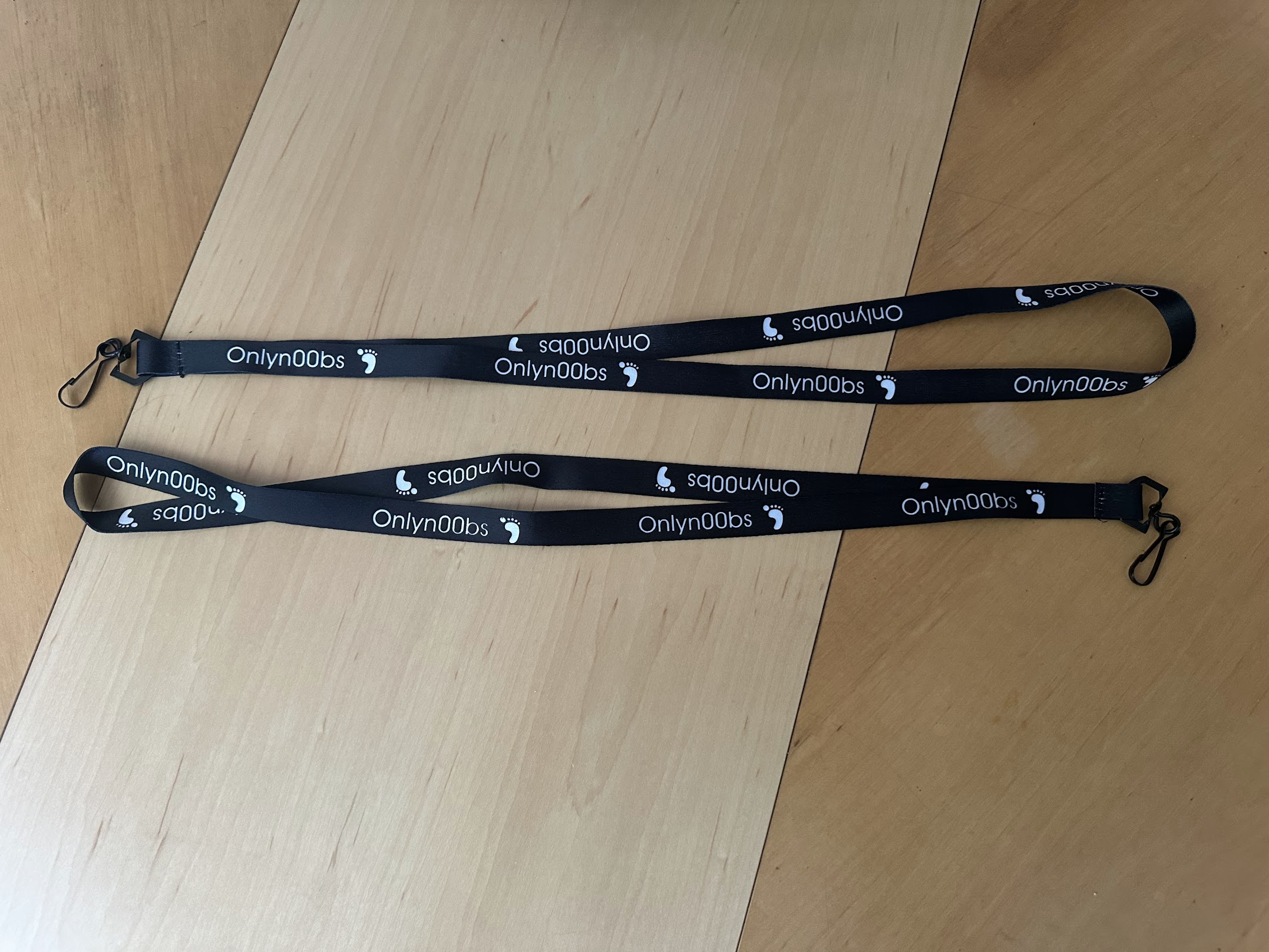
Each badge will come with a lanyard:
// the accessories
The two openings in the case were designed to be backwards compatible with DC33 OnlyFeet/N00b_Sec Croc jibbitz (and the rest of Crocs Jibbitz ecosystem... bring 'em if ya got 'em.). Equally, you can buy them from Crocs, 3D print them, and/or buy them from Etsy.
Additionally, a variety of 3D printed accessories (e.g., as seen in the photo above) will be provided for customization. These are still in development (but if you have an idea for something really funny, let me know.):
// setup
You need: the badge, a computer (with Chrome or Edge) or an Android phone, and about two minutes.
- Put the badge in setup mode. From the badge:
OPTIONS → Badge Settings →
      Developer Options → Provisioning Mode
. (You can also hold the microcontroller'sBOOTbutton while powering it on — but that means opening the case, so the menu is the easier route.) - Read the 3-character pairing code off the badge screen (something like
K7Q). This stops strangers from reconfiguring your badge. - Open the setup app, type in your handle, the pairing code, optionally configure an avatar, then hit connect & save.
- Select your badge from the browser's Bluetooth pop-up. It will show up as
badge-setup-<MAC>. The badge then reboots into normal mode with your handle set, and its internal clock (used to timestamp your encounters — it isn't shown on screen) set from your device.
If that internal clock drifts after a battery swap — your con REPORT times go "relative" — the same web app has a sync clock only button that re-syncs it without touching your handle.
Stuck in setup mode? Hold the badge's button for 5 seconds. A badge in setup mode is not beaconing and won't see anyone, and will sit there forever. Holding the button counts down on screen and reboots straight to HOME.
Note: A badge that has never been set up will name itself something like
n00b-1858 on the way out, so that it works immediately.
// usage
Seven views, in a loop. Double-tap the button to walk forward through them:
  double-tap walks down this list          a single tap here does…
  ┌──────────────────────────────────────────────────────────────
  │ HOME      handle, avatar, points, battery
  │ FINDER    who's in range, closest first     page the list
  │ REPORT    your con so far
  │ POINTS    points over time, as a graph      cycle 5d / 24h / 1h
  │ FRIENDS   best-friends ledger
  │ BATTERY   charge level                      flip to storage
  │ OPTIONS   settings                          move the cursor
  └── and wraps back to HOME ────────────────────────────────────

  hold the button 1.5s from anywhere → jump straight to HOME
- HOME
- Your handle, your avatar, total points, and battery. The default view.
- FINDER
- Who's in range right now, closest first. Tap to page through the list if there are more badges than fit. A badge drops off ~15 seconds after its last beacon.
- REPORT
- Your con so far: an encounter summary, snapshotted when you arrive on the screen.
- POINTS
- Points over time as a graph. Tap to cycle the window: 5 days / 24 hours / 1 hour.
- FRIENDS
- Your best-friends ledger — who you've actually spent time near, ranked by shared minutes.
- BATTERY
- Live battery gauge. Tap to flip to the storage readout (how full the badge's flash is).
- OPTIONS
- Note: In OPTIONS, tap moves the cursor down a row, double-tap selects it (and double-taps back out).
// the button
One button, three gestures:
   tap          →  do this screen's thing   (page the list, cycle the graph…)
   tap tap      →  next screen
   hold 1.5s    →  jump back to HOME        (works from anywhere)

   in SETUP MODE only:
   hold 5s      →  leave setup, reboot to HOME
If you're ever lost, hold the button. You'll land on HOME.
// battery & safety
It's a lithium-polymer pouch cell and we're in the desert. Do the math.
- Tested runtime: about 14 hours. Bring a power bank or charge nightly.
- Remember that LiPo batteries left empty for more than a few hours can be permanently damaged.
- Charging: via USB-C, roughly 4 hours from empty to full. Charge it on a hard surface — not on a hotel bed, a couch, or buried in a backpack.
- Never charge a pack that is hot, puffy, swollen, or has been crushed or punctured. A swollen pouch is done; stop using it. I'll give you a new one for free.
- Never leave it in a parked car, on a dashboard, or in direct sun. A closed car in Vegas will cook a pouch cell well past anything it's rated for.
- Don't leave it charging unattended.
- Deep sleep is not "off": a sleeping badge still draws a (very) small amount of power and will die/kill the battery eventually. For longer periods (8+ hours), charge it to roughly half and unplug the battery at the JST connector.
- Dead or damaged cells go to battery-recycling (please don't toss them in the trash).
// troubleshooting
- The setup page has no "connect" button, or the button does nothing
- You're on a browser without Web Bluetooth. Use Chrome or Edge on a laptop or Android. iOS cannot do this at all — I wasn't lying before lol.
- FINDER shows nobody
- In order of likelihood: (1) nobody is actually in range — the radio range is in the tens
of meters (and bodies absorb 2.4 GHz), (2) the other badge is in setup
mode, so it isn't beaconing, (3) mismatched builds — if multiple people see
nothing, compare firmware versions on
OPTIONS → Whoami. - My REPORT times look wrong or say "relative"
- There's no clock on screen, but the badge still keeps time internally to timestamp your encounters — and it has no battery-backed clock, so it gets the time from your phone or laptop during setup. After a battery swap that can drift; the REPORT view then shows relative times instead of real ones. Run sync clock only in the setup app to fix it. Don't do this on an iPhone-only trip — you can't (sensing the theme yet?).
- I'm stuck on the SETUP MODE screen
- Hold the button for 5 seconds. The screen counts down and the badge reboots
to HOME. Works with no app and no network. One catch: it wants a fresh press,
so if you got here by holding
BOOTthrough power-on, let go first, then hold again. - My badge won't connect over Bluetooth
- It only advertises while in setup mode. If the browser's chooser is empty, the
badge isn't in setup mode — power-cycle it holding
BOOT. - It says the pairing code is wrong
- The code is 3 characters shown on the badge screen and it changes each time the
badge enters setup mode (the charset deliberately has no
0/Oor1/I/L). - The badge says
locked, power-cycle - Five wrong pairing codes and the badge shuts its setup gate until it reboots
— that's on purpose, so nobody can sit in range guessing codes at your badge. Power-
cycle it (hold
BOOTif you want to go straight back into setup) and you'll get a fresh code.
// privacy
It is a radio and DEF CON is full of weird people listening to radios.
- Your badge broadcasts your handle in cleartext, once per second, plus a stable hardware address that doesn't change.
- The HMAC signature proves a beacon came from someone with the group key. It signs, it does not encrypt — anyone sniffing 2.4 GHz nearby can read the handles and follow a badge around the venue.
- So: pick a handle you're happy having in the air, and assume presence is public.
- If you'd rather not be seen, Badge Settings → Stealth turns your broadcast off. You can still see other badges; they can't see you.
- Encounter logs, points, and your best-friends list stay on the badge. Nothing is uploaded anywhere — the setup app talks only to the badge in front of you, and the metrics export for post-con visualizations runs in your browser.
- Nobody can reconfigure your badge over the air. Setup only listens while the badge is in setup mode.
// purchasing
The badges are $50 (or $45 without the lanyard). You'll be able to pay with cash or via Venmo/Paypal.
Add your name to the Google sheet and pick it up from me (virtualtack) at the Con.
If you really want a specific color combination, let me know before Sunday, July 26 and I'll do my best to accommodate. I can't make any promises, though, sorry.